← Back to Property Admin Guide
Food Temperature Logs

Log a food temperature check
1. Go to **Temperatures → Food Temps**.
2. Choose the tab for what you’re logging: **Food Temperature**, **Blast Chilling**, or **Probe Calibration**.
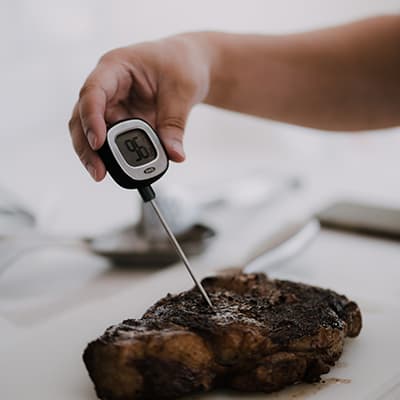
3. On the **Food Temperature** tab, choose the **Check type** (e.g. *Freshly cooked (≥ 75°C)*), enter the food/dish name and the temperature, and optionally a note.
4. Click **Add log**. The result — pass or out-of-range — appears next to **Outcome** as you type the temperature, before you even save.
Entries are immutable once saved — they can’t be edited or deleted, only added to, which keeps the record trustworthy for an EHO inspection. The counters at the top (**AM 0/5 (needs 5)**, **PM 0/5 (needs 5)**) show how many checks are expected each session based on your property’s minimum-logs setting in [Admin Settings](admin-settings.md).
Export or print
Click **Print / PDF** at the top of the page to generate a printable report of the day’s entries.
Fridge Temps

Log a reading
1. Go to **Temperatures → Fridge Temps**.
2. Each unit shows its AM and PM slot for today — click into the open slot to log a reading. A slot shows **”Window closed”** outside your property’s AM/PM check windows, and **”Already logged”** once done.
3. Readings outside your configured safe range are flagged **AMBER** automatically, with who logged it and when shown alongside.
Add, edit, or archive a refrigeration unit
Unit management lives on the **Refrigeration Units** tab of [Admin Settings](admin-settings.md) — add a new fridge/freezer there, set its name and type, and archive it once it’s decommissioned rather than deleting it, to keep its historical logs intact.
Delivery Temps

Log a delivery
1. Go to **Temperatures → Delivery Temps**.
2. Fill in the date and time of arrival, supplier name, product name, product type, temperature category (e.g. Chilled), and the product temperature — the legal maximum for each category is shown next to the field (e.g. *≤5°C ideal · ≤8°C legal max* for chilled).
3. Optionally record vehicle temperature, package condition, and a use-by/best-before date.
4. Mark the delivery **Accepted** or **Rejected** under **Delivery decision**.
5. Click **Save delivery log**.
No deliveries today
If nothing is due in, tick **No deliveries received today** instead of logging a blank entry — this also clears the Delivery Temps reminder on the staff Home screen for the day.
—